Preface
Why Build SeedFlow?
If you manage multiple VPS, NAS devices, or boxes, you've likely encountered these issues: • Manually adjusting speed limits for different trackers is cumbersome • Occasionally forgetting to limit upload speeds when seeding, leading to account bans • Forgetting to tag new torrents, resulting in messy organization • Losing track of which server is still active (referring to qB)
SeedFlow was created to solve these problems: • A single web panel to manage all qB instances • Control speed limits through "rules" instead of manual operations • Automatically apply tags based on trackers • One-command deployment on client side, supporting both new and old qB versions
What Can SeedFlow Do?
Suitable for:
- Users who often forget to set speed limits when seeding (
me personally) - Users with 2 or more qBittorrent clients
- PT/BT users who want fine-grained speed control
- Users who want automation without writing scripts
Architecture Overview
SeedFlow consists of three components:
| Module | Technology Stack | Function |
|---|---|---|
| Frontend Web | React | Provides management interface, rule configuration, and status display |
| Server | Node.js / Express | Stores configurations, provides APIs, and pushes rules to Agents |
| Agent (client-side) | Go | Deployed on qB servers, maintains heartbeat with server, executes speed limiting and tagging via qB API |
In one sentence: Web configures rules → Server pushes → Agent executes → Changes take effect in qB
Deploying SeedFlow
Prerequisites
- A server or NAS
- Installed:
- Docker
- docker-compose (optional)
Small Recommendation
If you're using a foreign server, I personally don't recommend installing it on your home NAS\ Most home networks no longer have public IPv4 addresses, though it doesn't matter if you're only using it locally\
Deployment priority: Foreign server > qB's own server > Home NAS
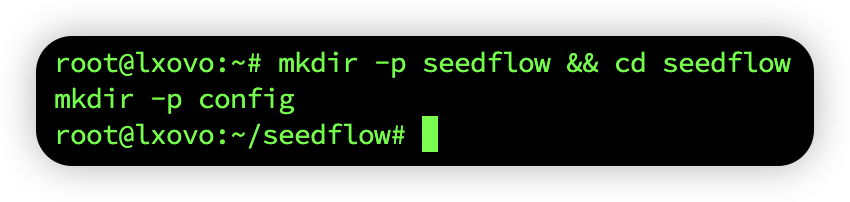
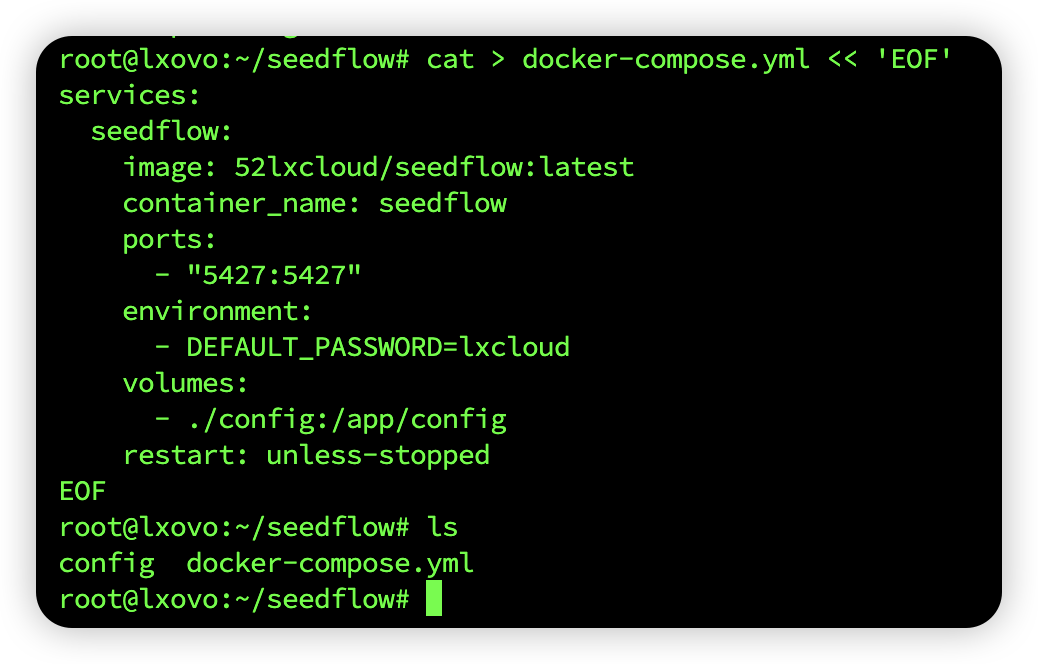
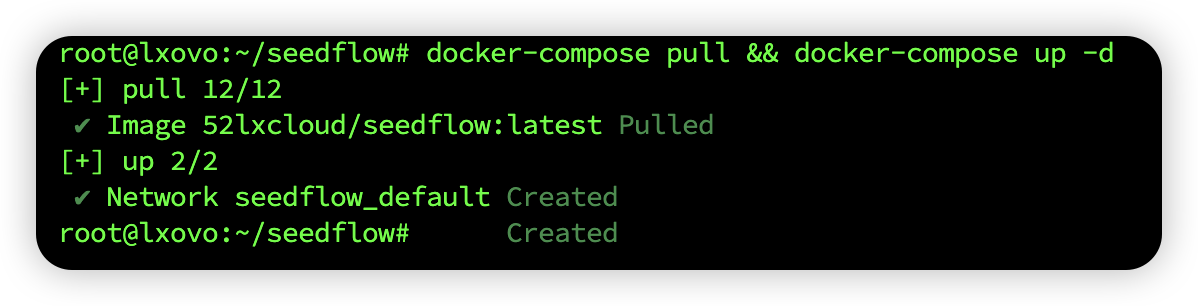
Deploying the Server
After startup, access:
Default login password:
lxcloud
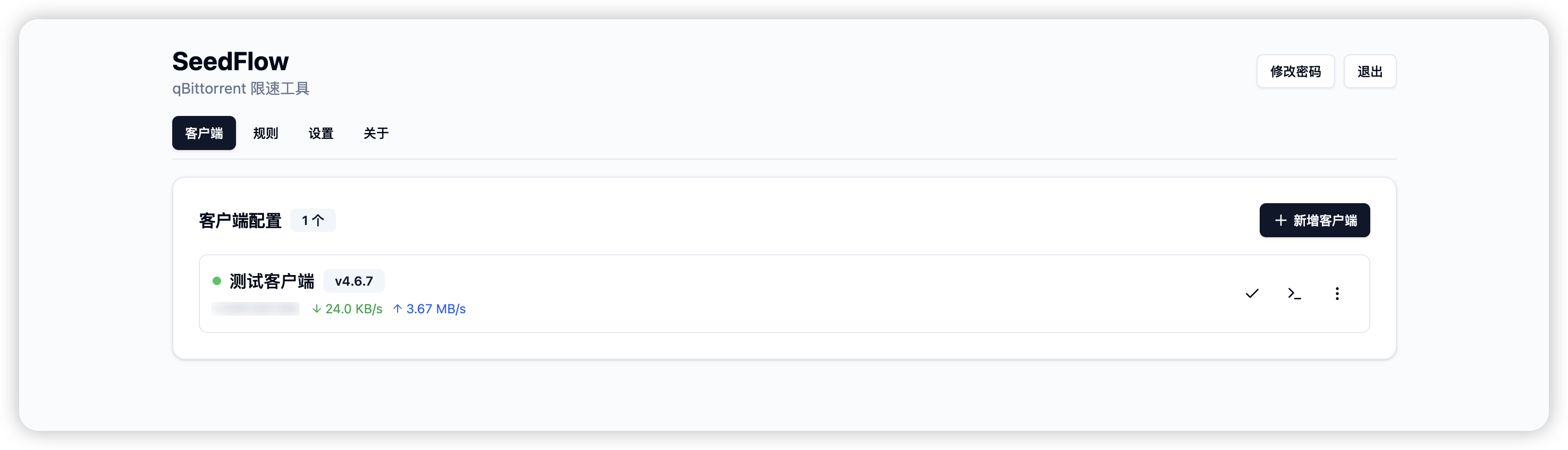
Adding qB Clients
- Enter SeedFlow panel
- Click "Add Client" and fill in the following information:
- Host (IP:Port)
- If SeedFlow and qB are on the same server, use
127.0.0.1orlocalhost
- If SeedFlow and qB are on the same server, use
- Username / Password
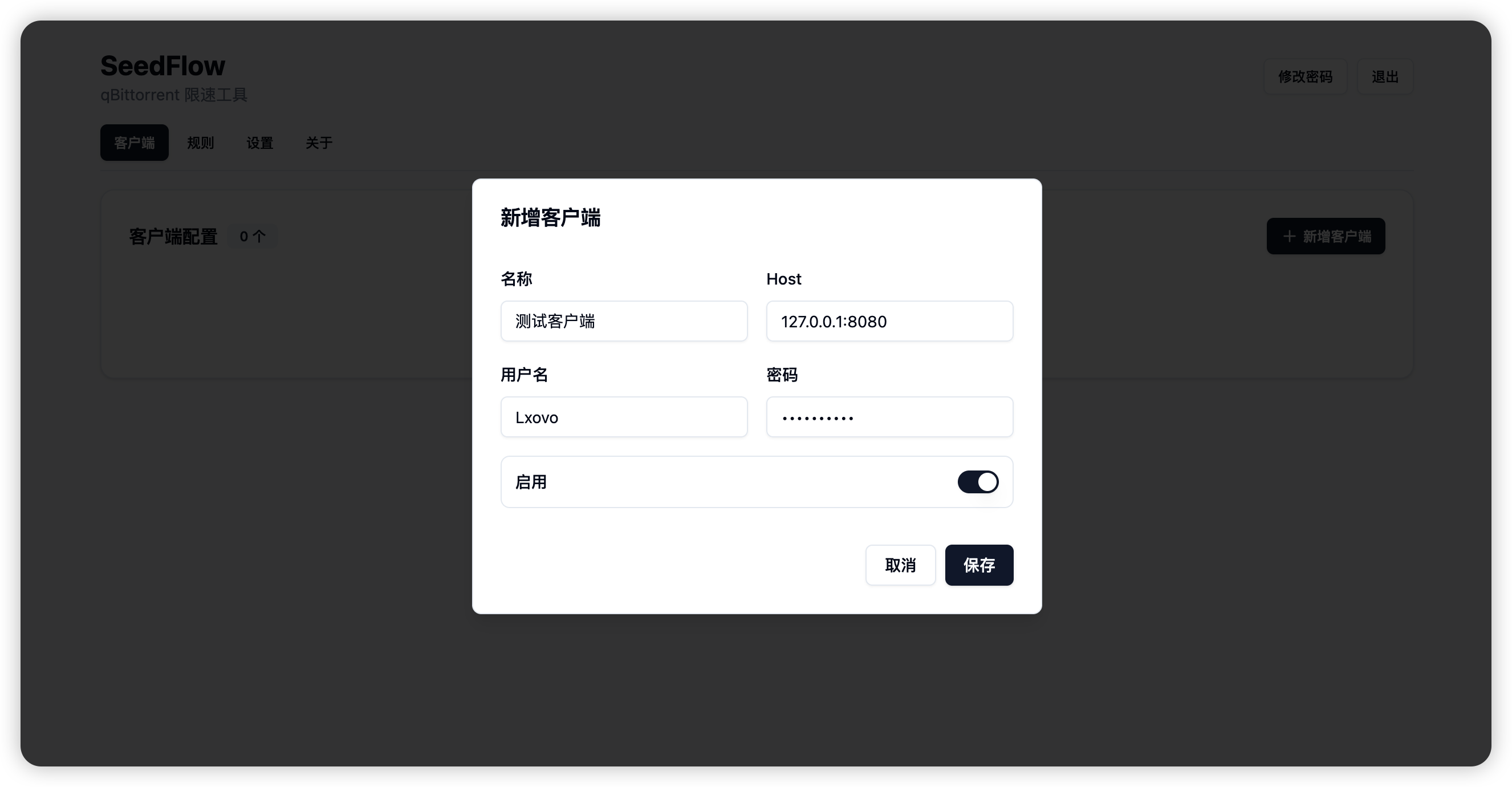
Add qB Client
- Click "Test Connection" to verify connectivity
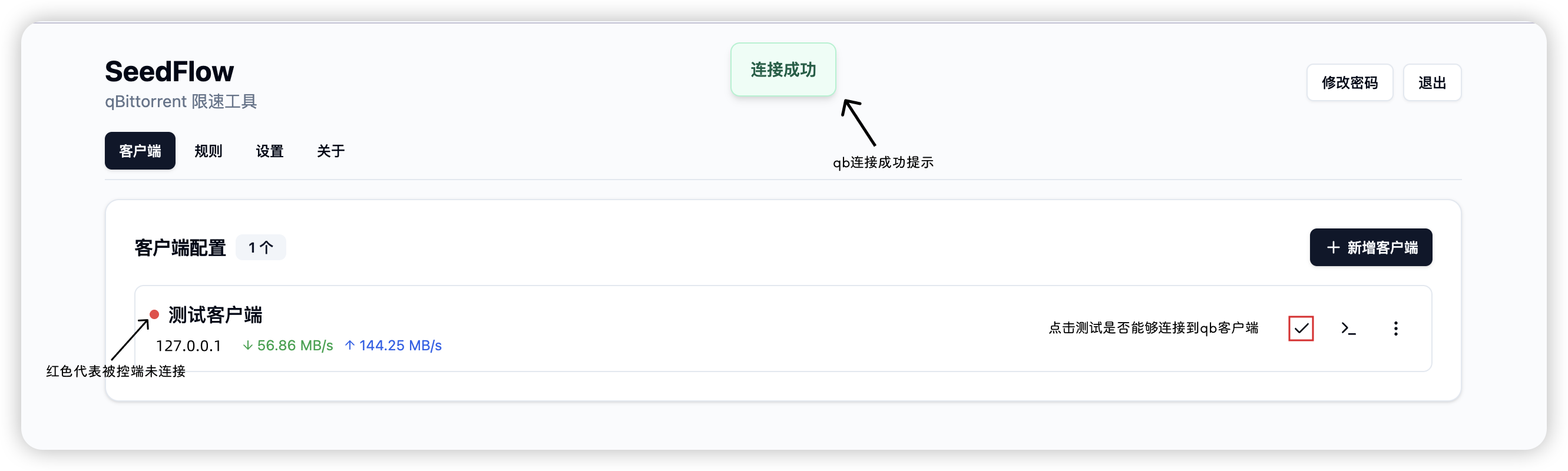
Test Connection
Deploying Agent
- Click the terminal icon next to "Test Connection"
- Click "Copy Installation Command"\ Some browsers may require manual copying
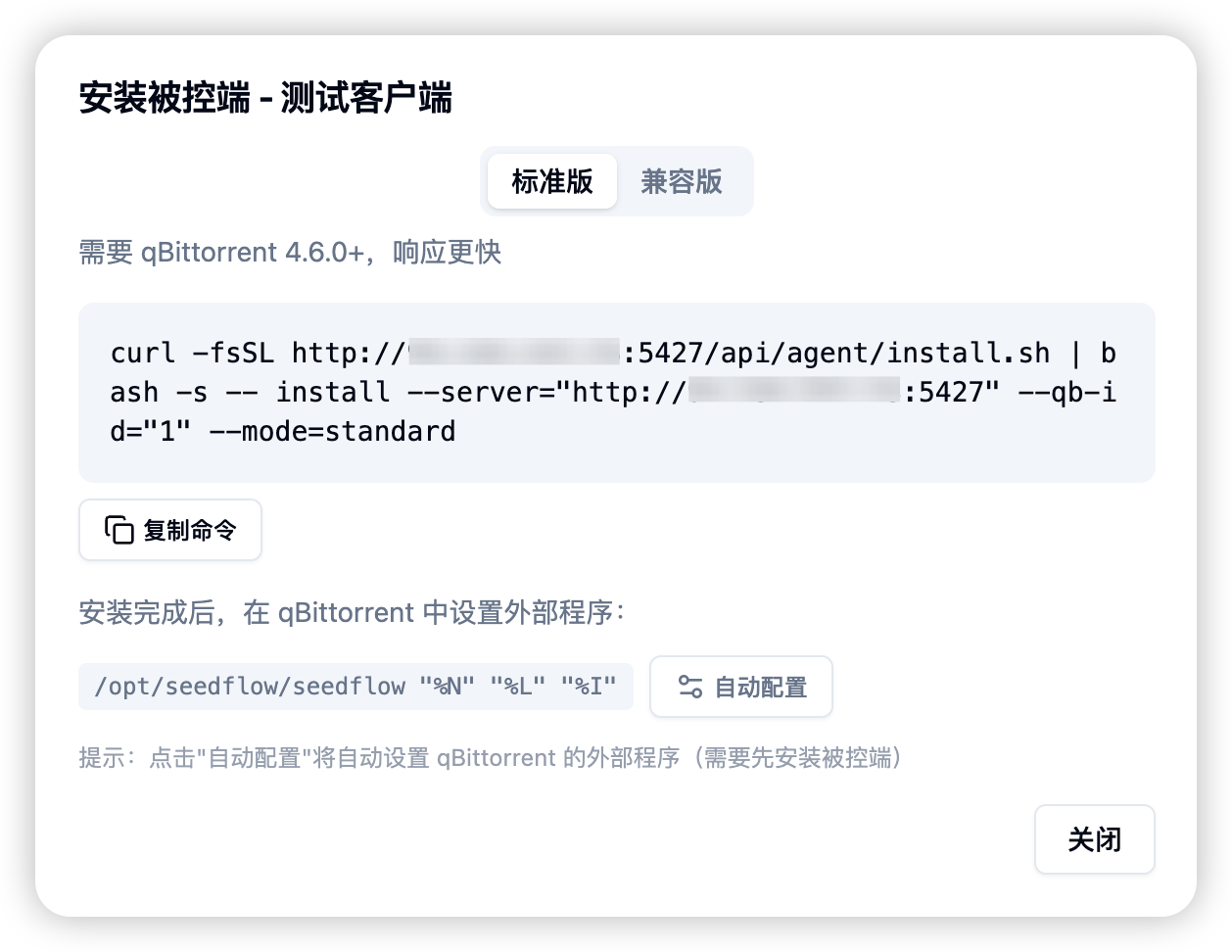
Copy Installation Command
- Go to the qB server you want to manage and execute the copied installation command

Install Agent
- After installation, you'll see these status changes:
- Agent starts automatically
- "Heartbeat status" in panel changes from red to green
- Logs show the corresponding mode has started successfully
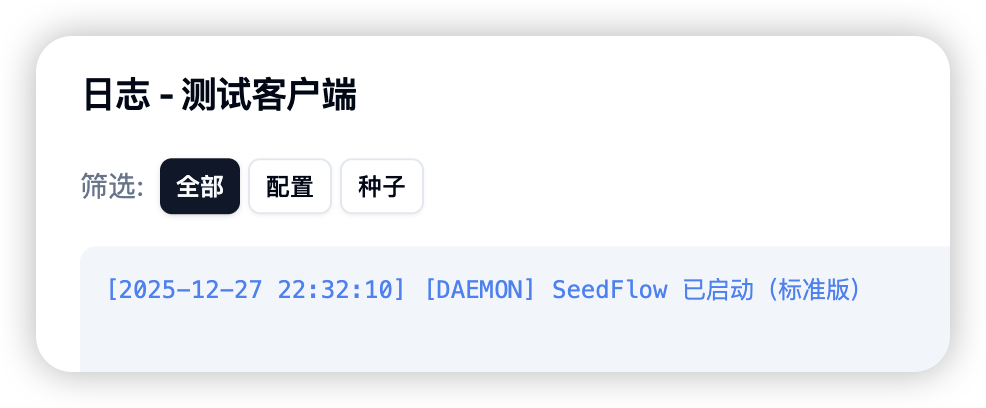
Log Status
- Additional Configuration for qBittorrent 4.6.0 and Above
After installation, configure "External Programs" in qBittorrent
Click "Auto Configure" in the installation command panel to complete setup with one click (recommended).
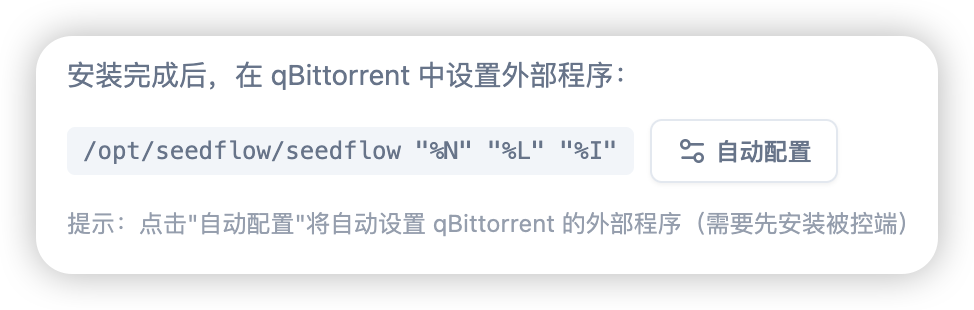
Auto Configure External Programs
Mode Comparison
| Mode | Supported qB Versions | Working Method | Features |
|---|---|---|---|
| Standard (Recommended) | ≥ 4.6.0 | Triggered via "External Programs" | Better real-time performance, lower performance overhead |
| Compatibility | All qB versions | Polling detection | Best compatibility |
Configuring Speed Limit Rules
Speed Limit by "Tag"
I personally recommend first applying tags, then using tag-based rules for speed limiting
You can choose other matching methods based on your preferences
Below demonstrates a complete configuration process
Example Configuration:
- Match Type: Tag
- Match Value:
HeartSite - Download Speed Limit:
100 MB/s
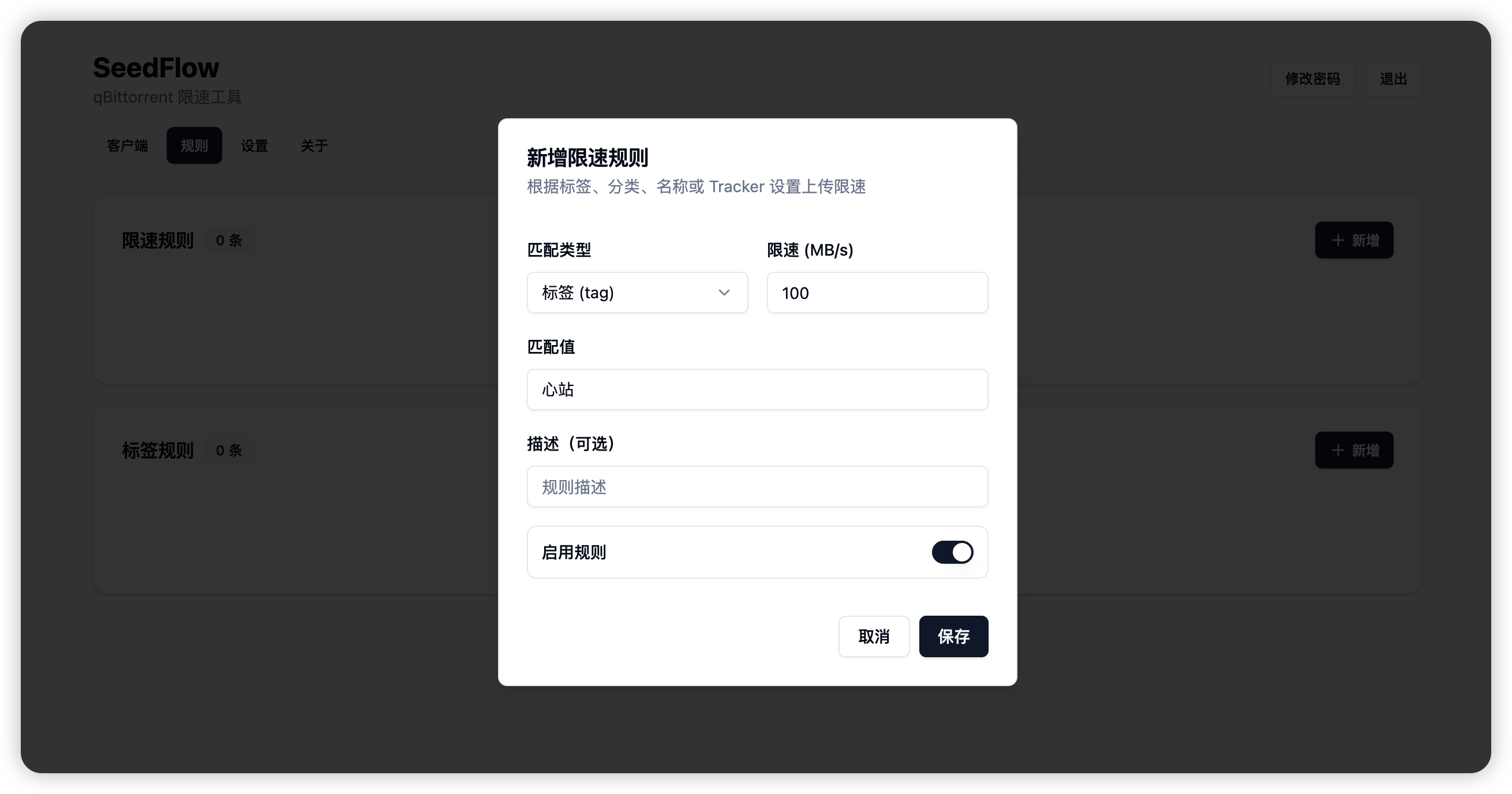
Tag-based Speed Limit Rule
Create new tag rule

Create New Tag Rule
Simply put, the logic is:
When SeedFlow detects a torrent added to qB whose tracker domain contains
lxlad.com\ It will automatically apply the "HeartSite" tag to this torrent\ Then the tag rule will match and automatically apply speed limits
Speed Limit by Tracker Domain / Category / Name
You can combine multiple conditions to achieve very fine-grained control
After configuration, check the logs to confirm rules have been successfully synchronized and applied
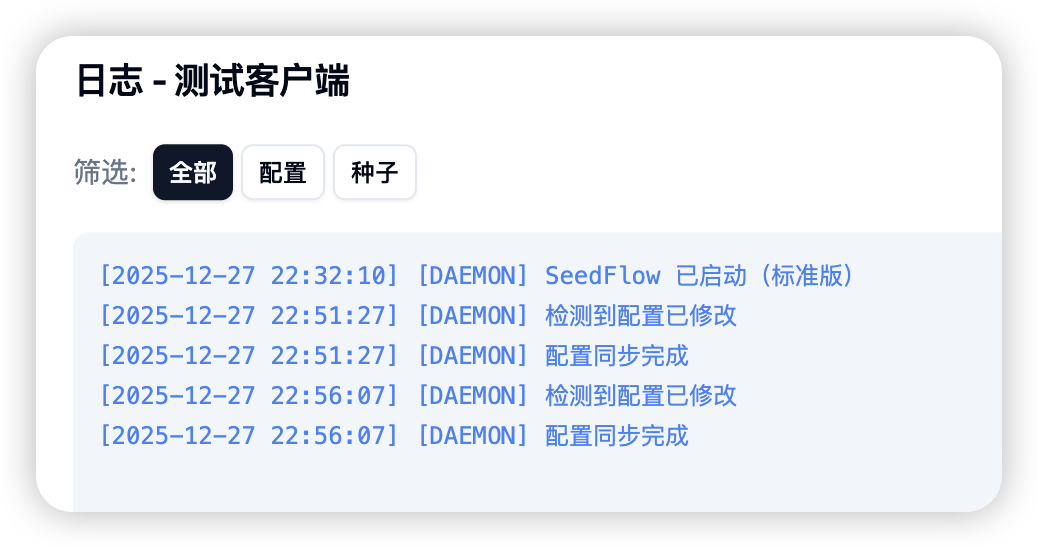
Rule Sync Logs
Testing if Rules are Effective
Manually add a torrent in qB that matches your rule conditions
Check the panel's log page
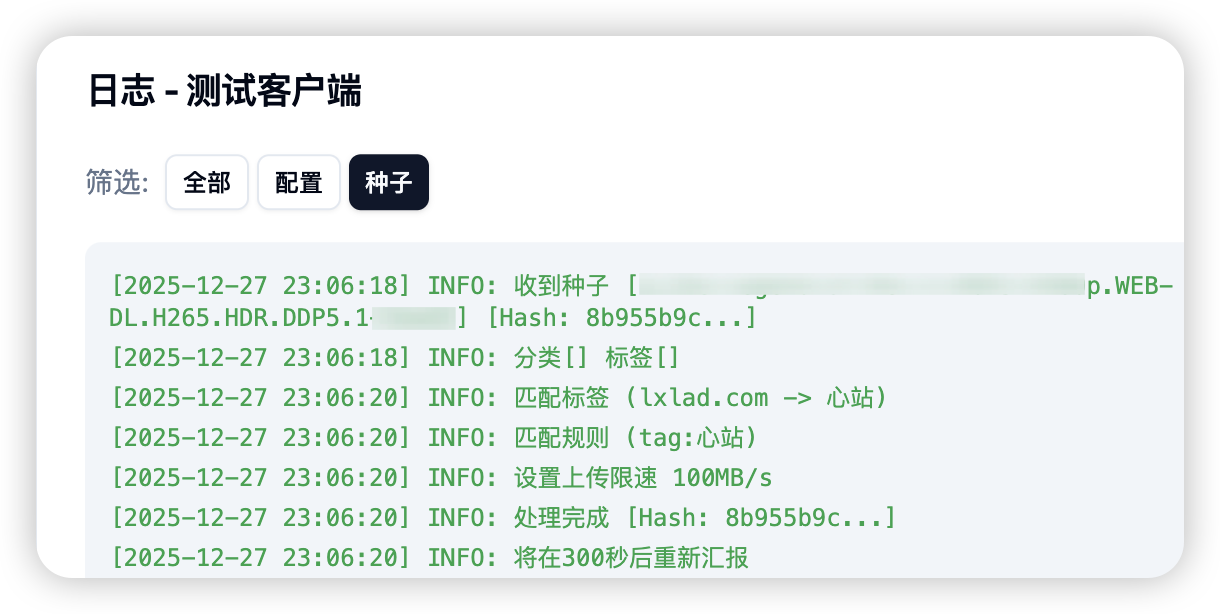
View Logs
If logs show successful rule matching and execution, the Agent is working properly
- Check the client
Return to qB interface, where you should see:
- Torrent has been automatically tagged
- Upload speed has been successfully limited according to rules
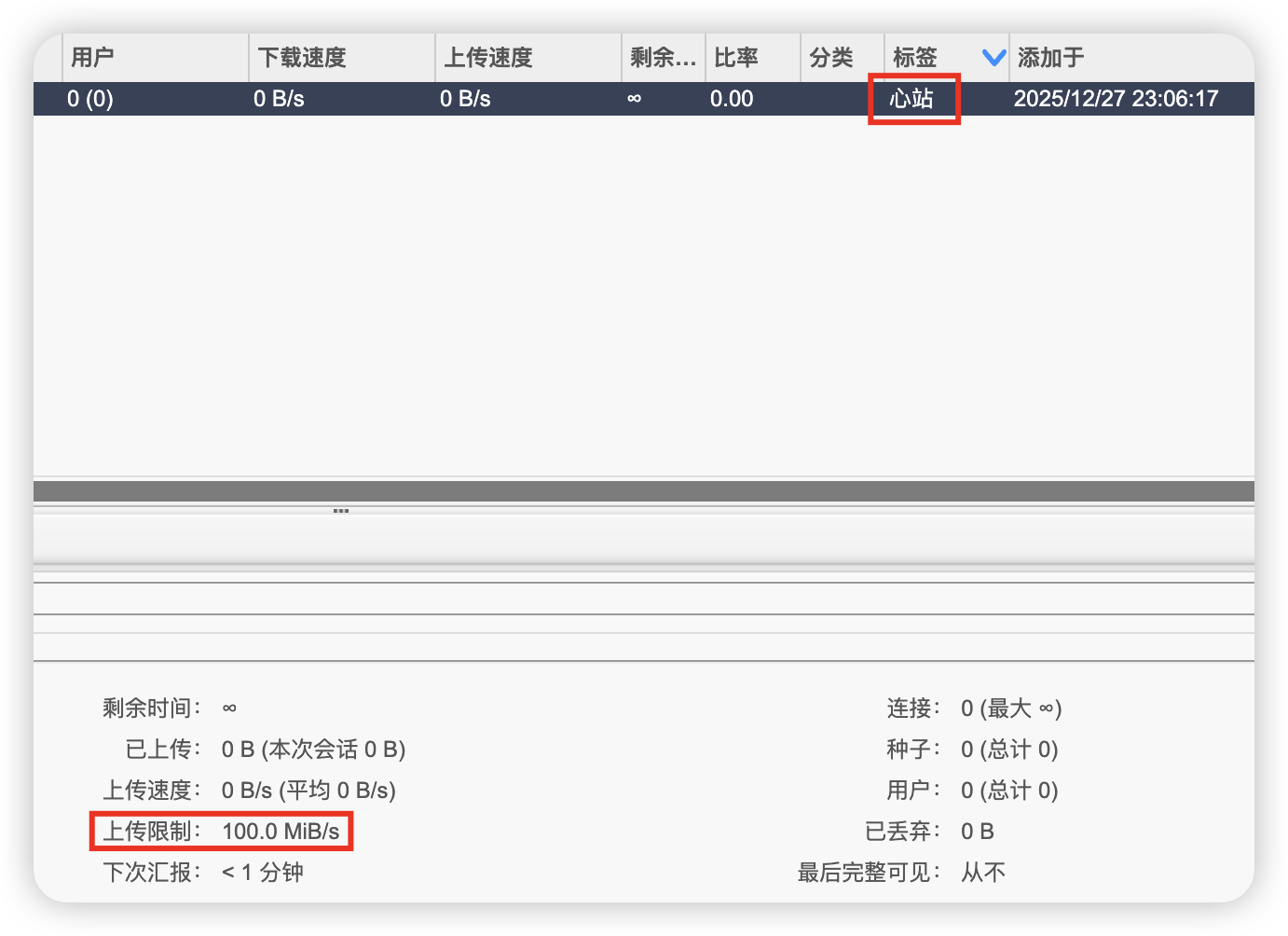
Rule Effective
Automatic Tagging
| Feature | Description |
|---|---|
| By Tracker Domain | Tag torrents based on tracker sites for clear organization |
| Auto Apply Specific Tags | Fully automated when combined with speed limit rules |
Import/Export Configuration
Export
| Type | Description |
|---|---|
| Clients | Configured qB client settings |
| Rules | Speed limit rules, tag rules |
| All Configuration | Complete SeedFlow configuration snapshot |
Import
| Type | Description |
|---|---|
| Add | Keep existing configuration, append imported data |
| Overwrite | Clear existing configuration, use imported data |
Common Issues
Q: Rules not working?
Please troubleshoot in the following order:
Check if Agent is online
- "Heartbeat status" in panel should be online (green)
- If Agent is offline, check if the client-side service is running properly
Confirm qBittorrent version and mode
- qB ≥ 4.6.0: Use "Standard" mode and confirm external programs are configured
- qB < 4.6.0: Use "Compatibility" mode
Final Thoughts
SeedFlow is more like a "qB automation hub". It was created simply to help PT users avoid forgetting to set speed limits according to different site rules, which could lead to account bans.
I spent an entire night writing this article, explaining everything based on the minimal setup scenario. If you have questions, feel free to leave comments